 Tweet
Tweet
Summary: In this blog, we'll show you how to uninstall Microsoft Office 365, 2019, 2016, and 2011 from your Mac completely.
Microsoft Office is essential to our daily work. However, many reasons might make you want to remove it from your Mac, such as upgrading to a new version, freeing up storage space, or fixing errors in Word, Excel, PowerPoint, or other Office applications.
Uninstalling Microsoft Office for Mac should have been easy, but the Microsoft Office Removal Tool only supports Windows. Want to know how to uninstall Microsoft Office for Mac? Please read on. In this article, we will provide you with detailed instructions on how to completely remove Office 365, 2019, 2016, and 2011 from your Mac.
Let's get started.


Table Of Contents
- How to Uninstall Microsoft Office on Mac Quickly
- How to Uninstall Microsoft Office on Mac Manually
How to Uninstall Microsoft Office on Mac Quickly
There are many versions of Microsoft Office. Different versions have different functions. Commonly used versions for Mac are Office 2011, Office 2016, Office 2019, and the latest Office 365.
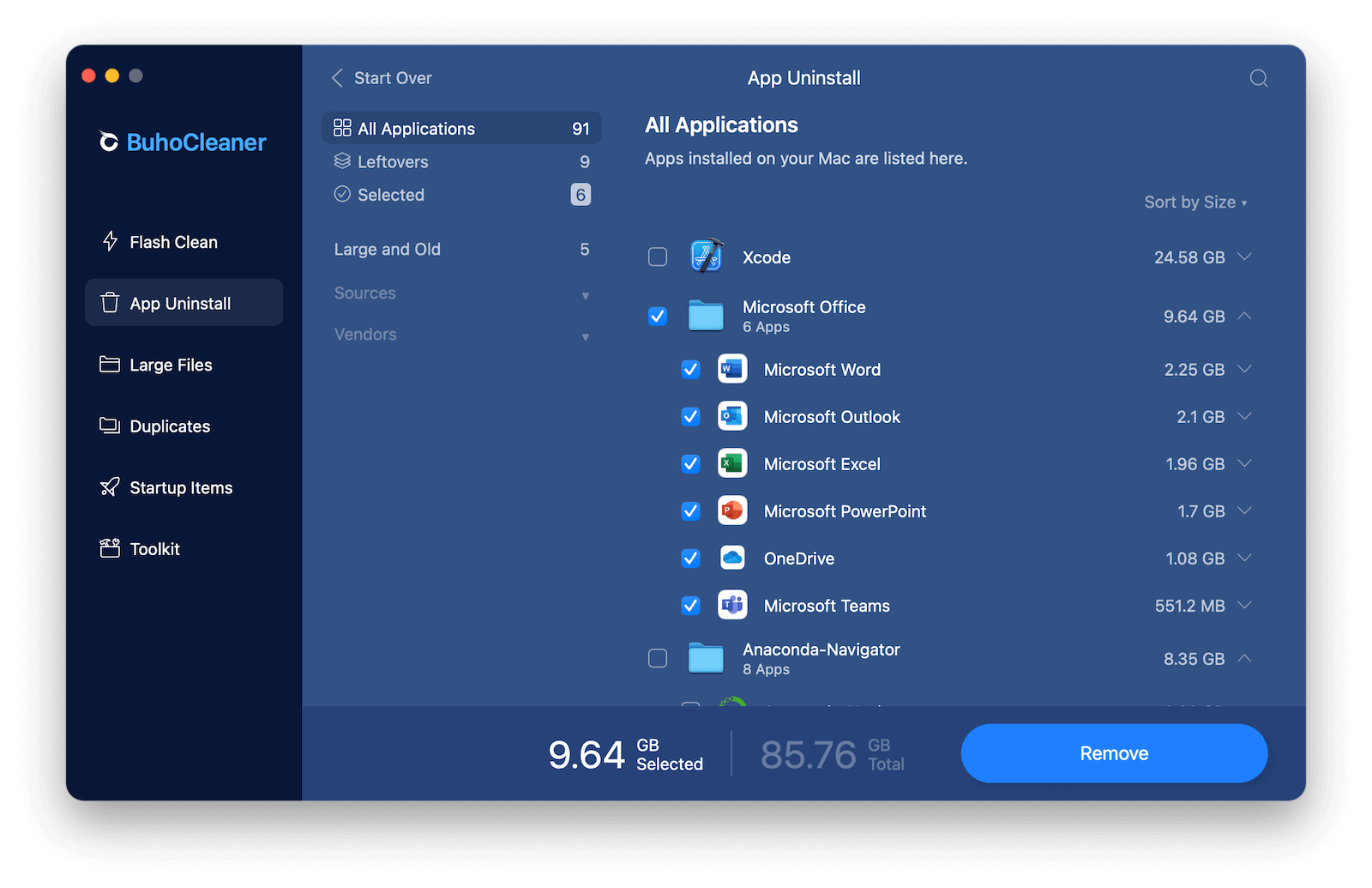
Manual removal of Microsoft Office for Mac may take some time. If you are looking for a faster solution, then try BuhoCleaner. It is an easy-to-use Mac Office uninstaller. With this tool, you can delete Office apps and their related files with just one click.
- Make sure you have BuhoCleaner installed on your Mac.
- Launch it and click App Uninstall, you will find all the apps installed on your Mac.
- Locate the Microsoft Office applications, check the boxes next to them, and click the Remove button.
How to Uninstall Microsoft Office on Mac Manually
If you don't want to install any software on your Mac, follow the steps below to manually uninstall Microsoft Office.
Note
Make sure you have signed in to your administrator account on Mac.How to Remove Office 2011 on Mac
Microsoft Office stopped supporting Office for Mac 2011 on October 10, 2017. Although you can continue to use its functions, you cannot keep up to date with all the latest features, patches, and security updates. To uninstall it, follow the following steps:
- Quit all the Office applications first.
- Open Finder in the Dock and go to the Applications folder.
- Locate the Microsoft Office 2011 folder and move it to Trash.
- Empty your Trash and restart your Mac.
Uninstalling newer versions of Office, such as Office 365, is more complicated than uninstalling Office 2011 because you have to delete not only the application itself but also related files stored on the hard drive.
In fact, the steps to remove Office 365, 2019, and 2016 are similar. And they mainly include deleting the Office app icons, removing related files, and unlocking apps from the Dock.
Step 1Remove Office for Mac Applications
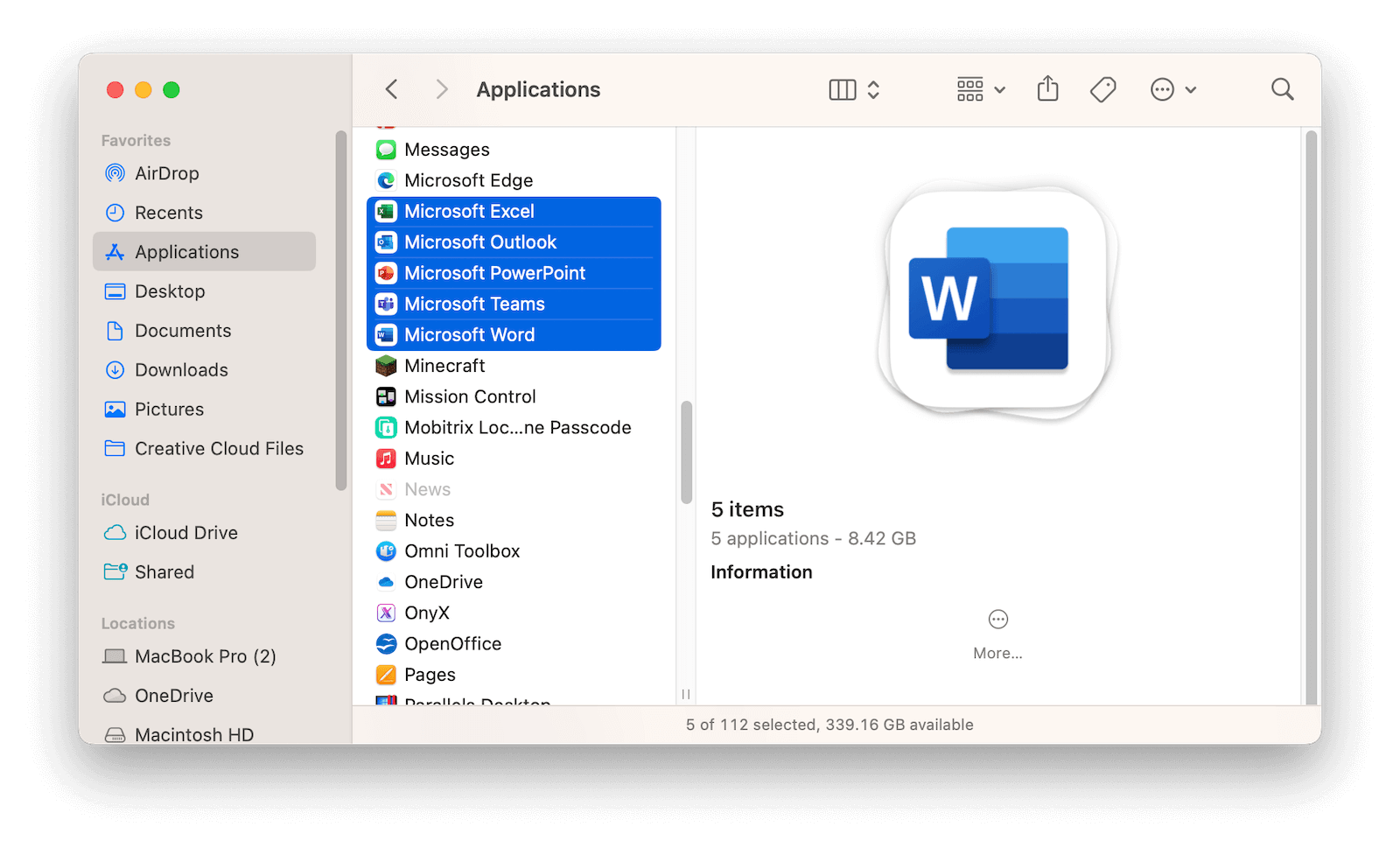
- Launch Finder from Dock.
- Click on the Applications option, locate and select all Office applications (Word, Excel, PowerPoint, OneNote, OneDrive, and Outlook).
- Move them to the Trash.
Step 2Delete Office Associated Files on Mac
- On the Finder window, press Shift + Command + G to open the Go to Folder window.
- Enter ~/Library in the box and click the Go button.

- Find and open the Containers folder.
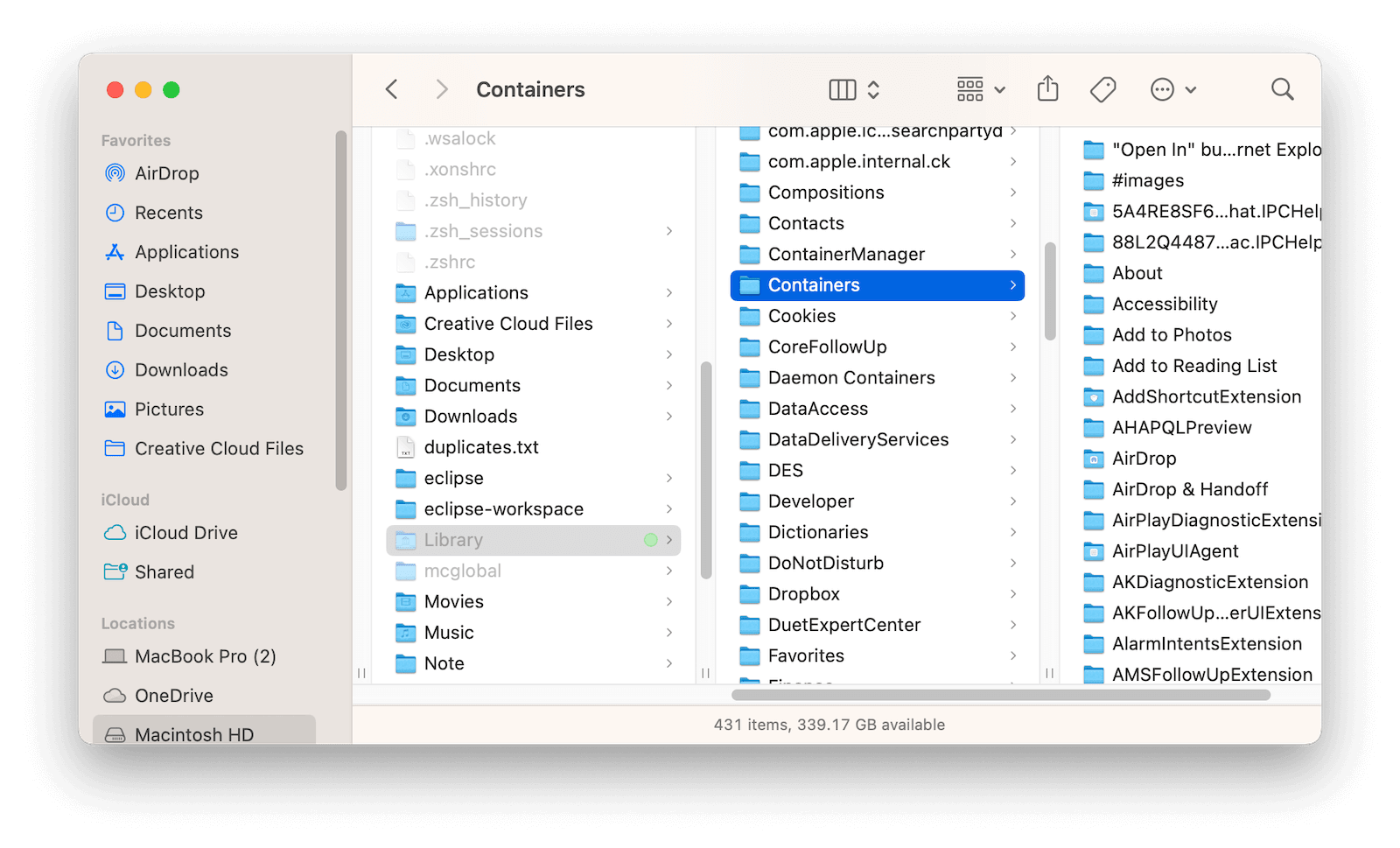
- Locate these folders below and move them to Trash. (Note: Some of them may not be present.)
- com.microsoft.errorreporting
- com.microsoft.Excel
- com.microsoft.netlib.shipassertprocess
- com.microsoft.Office365ServiceV2
- com.microsoft.Outlook
- com.microsoft.Powerpoint
- com.microsoft.RMS-XPCService
- com.microsoft.Word
- com.microsoft.onenote.mac
- com.microsoft.OneDrive.FinderSync
- Click the back arrow in the Finder window to go back to the ~/Library folder.
- Locate the Group Containers folder and open it.
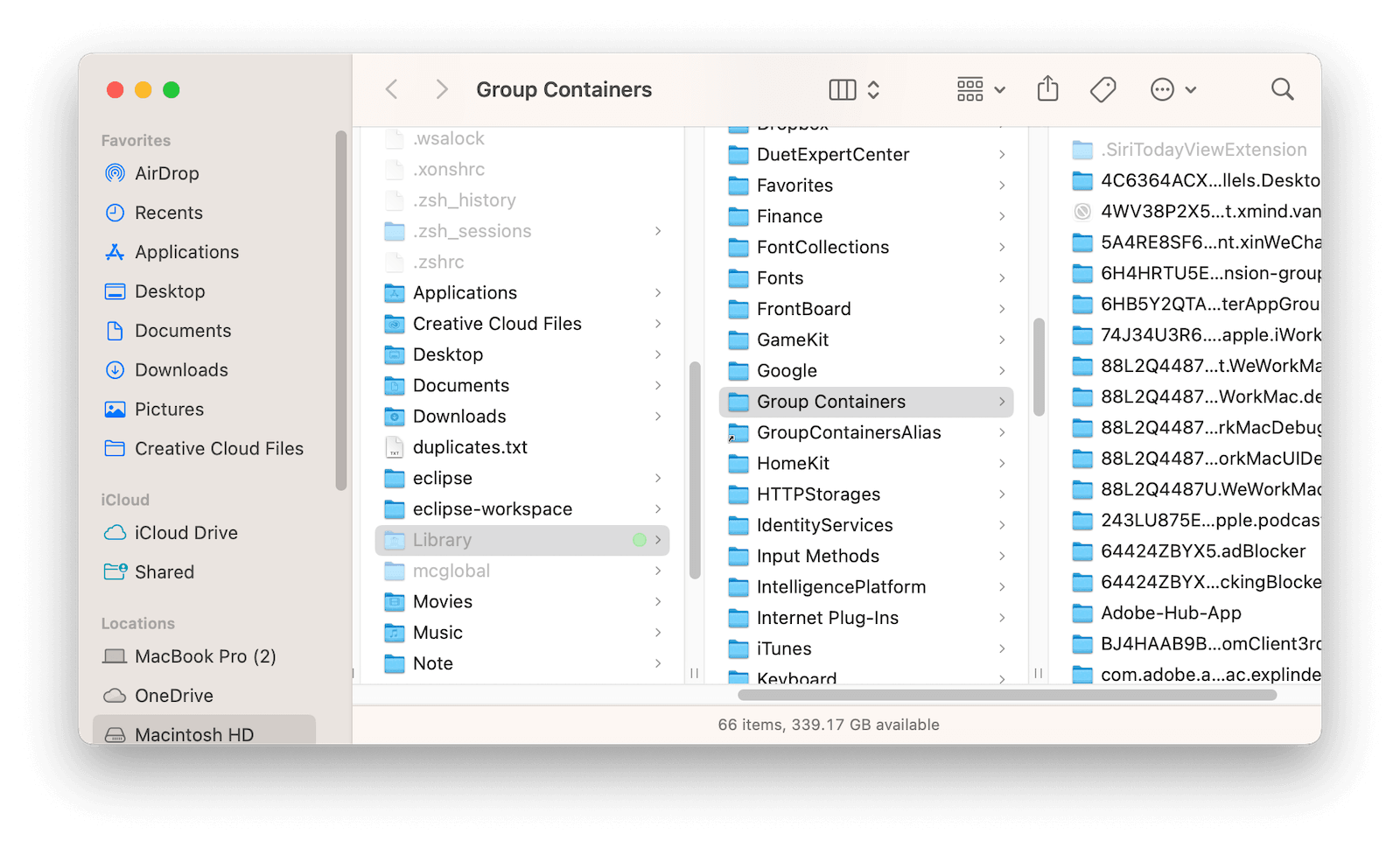
- Locate these folders below, if present, and move them to Trash.
- UBF8T346G9.ms
- UBF8T346G9.Office
- UBF8T346G9.OfficeOsfWebHost
- UBF8T346G9.OneDriveStandaloneSuite
- UBF8T346G9.OneDriveSyncClientSuite
- UBF8T346G9.OfficeOneDriveSyncIntegration
All your Outlook data will be deleted when you move the first 3 folders to the Trash. Please back them up before you remove them. - Empty your Trash.
Step 3Remove Microsoft Office Apps from Dock and Restart Mac
- If you have Microsoft Office Apps locked in Dock, right-click app icons > Options > Remove from Dock.
- Restart your Mac to uninstall Microsoft Office for Mac completely.

The Bottom Line
That's all about how to uninstall Microsoft Office on Mac. All in all, uninstalling Office 2011 for Mac is easy, but uninstalling Office 365, 2019, and 2016 on Mac is a bit complicated and time-consuming. If you want to delete Office quickly, BuhoCleaner is your best choice. Go ahead and completely remove office apps and their associated files in seconds.
Read more